
Откройте Berichtenbox через MijnOverheid
MijnOverheid (государственный портал) доступен людям от 14 лет с burgerservicenummer (BSN, номером обслуживания граждан), которые пользуются государственными услугами Нидерландов. Откройте MijnOverheid (Внешний сайт, откроется в новой вкладке) и используйте функцию Inloggen (вход) через DigiD (Внешний сайт, откроется в новой вкладке) или одобренное европейское средство входа. При первом входе укажите электронный адрес и выберите настройки. В разделе Instellingen (настройки) выберите отправителей цифровых писем. Включите уведомления о новой почте и напоминания о непрочитанных письмах.
Портал обслуживает Logius (государственная организация цифровых услуг) (Внешний сайт, откроется в новой вкладке).
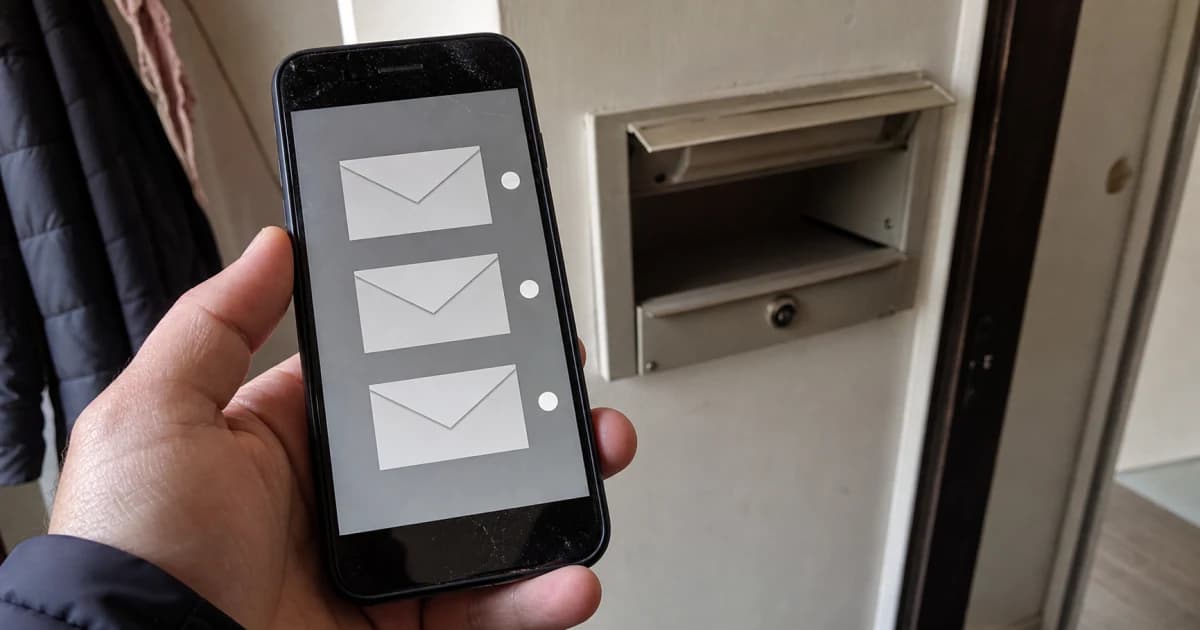
Чем различаются MijnOverheid, Berichtenbox и DigiD
В MijnOverheid можно посмотреть ваши данные в государственных реестрах и открыть Berichtenbox (Внешний сайт, откроется в новой вкладке). Само письмо хранится в Berichtenbox. Уведомление лишь сообщает, что его нужно прочитать.
Широкие таблицы можно прокручивать по горизонтали.
| Сервис или способ доставки | Для чего нужен | Что проверить отдельно |
|---|---|---|
| MijnOverheid | Показывает данные в реестрах, сведения о делах и ваш Berichtenbox | Для исправления данных обратитесь в организацию, которая их предоставила. Вопросы о решении задавайте отправителю. |
| Berichtenbox | Принимает цифровые письма от подключённых организаций | Ответьте способом, указанным в письме. Через Berichtenbox нельзя отправить сообщение или ответ. |
| DigiD | Подтверждает вашу личность при входе | Безопасность DigiD настраивается в Mijn DigiD. Электронный адрес для DigiD и MijnOverheid задаётся отдельно. Адрес для MijnOverheid меняйте в Instellingen. Там же настраиваются его уведомления. |
| Уведомление по электронной почте или в приложении | Сообщает, что в аккаунте может быть новое письмо или обновление по делу | Прочитайте само письмо. Проверяйте Berichtenbox и без уведомлений. Уведомления по электронной почте не имеют юридической силы и могут не прийти или задержаться. |
| Почтовый ящик для бумажных писем | Получает письма от других отправителей и почту, которую всё ещё отправляют на бумаге | Проверяйте бумажные письма. Их может не быть в Berichtenbox. |
Если вы привыкли подавать заявления через российские «Госуслуги» или украинский портал «Дія», помните: через Berichtenbox можно только получать письма. Для ответа используйте способ, указанный в самом письме.
После регистрации в муниципалитете продолжайте читать бумажные письма. Если вы ещё не пользовались MijnOverheid, активируйте аккаунт при первом входе. Другие задачи после переезда собраны в списке дел на первые 90 дней в Нидерландах.
Как активировать MijnOverheid
Если у вас ещё нет DigiD или он не работает, начните с руководства по оформлению и восстановлению DigiD. Когда у вас будет одобренное средство входа, вы сможете активировать MijnOverheid.
На сайте выполните следующие действия:
- Откройте MijnOverheid через сохранённую закладку или наберите mijn.overheid.nl.
- Проверьте адрес до ввода данных. Вход через DigiD продолжается на digid.nl.
- Выберите Inloggen met DigiD или вариант европейского входа.
- Для активации укажите электронный адрес, который вы проверяете, и выберите предложенные настройки.
- Откройте Instellingen.
- Включите Melding als er nieuwe post is (уведомление о новой почте).
- Включите Herinnering als u post niet hebt geopend (напоминание о неоткрытой почте).
- Откройте Organisaties Berichtenbox.
- Перед сохранением проверьте каждого выбранного отправителя и последствия для бумажных писем.
Приложение Berichtenbox устанавливать необязательно. В нём можно читать сообщения и получать уведомления на телефон. Для его использования сначала активируйте MijnOverheid и приложение DigiD. Скачайте Berichtenbox из Apple App Store или Google Play. На сайте можно изменить выбор организаций или прочитать письма человека, который предоставил вам доступ.
Настройте уведомления и проверяйте почту
Уведомление по электронной почте может не прийти. Поставьте регулярное напоминание самостоятельно открывать Berichtenbox. Проверьте четыре настройки и привычки:
Широкие таблицы можно прокручивать по горизонтали.
| Что проверить | Что сделать | Зачем |
|---|---|---|
| Электронный адрес | Укажите адрес, который проверяете. По возможности используйте отдельный ящик. | Если несколько человек используют один адрес, бывает непонятно, в чьём аккаунте появилось письмо. |
| Настройки уведомлений | Включите уведомления о новой почте и напоминания о неоткрытых письмах. | Первое сообщает о поступлении письма. Второе напоминает его открыть. |
| Доставка уведомлений | Добавьте noreply@mijn.overheid.nl в список надёжных отправителей. Проверьте спам и свободное место в почтовом ящике. | Переполненный ящик или фильтр спама может скрыть уведомление. |
| Регулярная проверка | Поставьте в календаре напоминание проверять MijnOverheid. Если используете приложение, оставьте его уведомления включёнными. | Отсутствие электронного уведомления не доказывает, что писем нет. |
Выберите цифровые или бумажные письма
Выбор способа получения писем действует для отдельного отправителя. Одной настройки для всех государственных организаций нет. В таблице показано, где проверять почту в разных случаях:
Широкие таблицы можно прокручивать по горизонтали.
| Ситуация | Что происходит | Что сделать |
|---|---|---|
| Организация не подключена | Она не может использовать ваш личный Berichtenbox. | Проверяйте бумажные письма или собственный портал организации. |
| Подключённая организация выбрана | Вы разрешаете ей отправлять цифровую почту. Некоторые виды писем могут перестать приходить на бумаге. | Прежде чем выбрать организацию, прочитайте её пояснения. |
| Подключённая организация не выбрана | Обычно письма продолжают приходить на бумаге, если этот способ доступен. | Пересматривайте выбор при появлении новых организаций. |
| Отправитель использует оба способа | Во время перехода копии письма могут прийти в цифровом виде и на бумаге. | Храните обе копии с документами по одному делу. Соблюдайте срок из письма: получение второй копии не означает, что нужно ждать. |
Belastingdienst (налоговая служба) (Внешний сайт, откроется в новой вкладке) ввела выбор между бумажной и цифровой почтой в декабре 2025 года. По её правилам, если ничего не менять, бумажные письма продолжат приходить. Переход на цифровую почту начинается с писем о подоходном налоге. Другая почта ещё может приходить на бумаге. Позже вы можете изменить выбор. Другие отправители сами определяют способы доставки.
Прочитайте письмо и выполните указанное действие
В письме может быть решение или запрос со сроком ответа. Разберите письмо по шагам:
- Откройте непрочитанные сообщения, начиная с самых старых. Срок уже может идти.
- Запишите отправителя, дату письма, срок, требуемое действие и номер дела.
- Сохраните письмо и приложения вне ящика, если они важны для налогов, пособий, права на проживание или обжалования решения. Сообщения остаются в Berichtenbox, пока вы их не удалите.
- Ответьте способом, указанным в письме. Отправить ответ через Berichtenbox нельзя.
Вопросы о решении, сумме или сроке задавайте отправителю. По техническим проблемам с доступом обращайтесь в MijnOverheid.
Допустим, в письме просят отправить документ до 20 октября 2026 года. Запишите эту дату и номер дела, сохраните письмо и отправьте документ указанным способом. Ориентируйтесь на дату в вашем письме. Дата из примера не определяет сроки по другим письмам.
По вопросам inburgering (гражданской интеграции) DUO (Dienst Uitvoering Onderwijs, служба по вопросам образования) (Внешний сайт, откроется в новой вкладке) также размещает письма в Mijn Inburgering (портале по вопросам интеграции). Руководство по Mijn Inburgering поможет найти там письма, запись на экзамены и результаты.
Как безопасно войти и распознать поддельное сообщение
Открывайте официальный сайт, чтобы читать письма или защитить аккаунт. Эти проверки помогут заметить поддельный запрос на вход:
Широкие таблицы можно прокручивать по горизонтали.
| Ситуация | Безопасное действие | Тревожный признак |
|---|---|---|
| Вы открываете почту | Начните с mijn.overheid.nl. Проверьте, что вход через DigiD проходит на digid.nl. | Сообщение предлагает войти по ссылке или QR-коду. В адресе есть лишние слова или символы. |
| Вы используете DigiD | Используйте приложение DigiD или sms-controle (подтверждение по SMS). Включите двухэтапный вход в Mijn DigiD. | Кто-то просит ваш логин, пароль, PIN (код доступа к приложению) или код из SMS. |
| Вам нужна помощь | Используйте DigiD Machtigen (предоставление разрешения) (Внешний сайт, откроется в новой вкладке), чтобы помощник входил со своим DigiD. | Помощник, консультант или сотрудник организации просит ваши данные для входа. |
| Пришло срочное сообщение | Самостоятельно откройте официальный сайт и проверьте сообщение. | Вам угрожают закрытием аккаунта или требуют немедленной оплаты, особенно по ссылке. |
Если вы ввели данные DigiD на поддельном сайте, самостоятельно наберите digid.nl и сразу смените пароль в Mijn DigiD. Если войти не получается, позвоните в службу поддержки DigiD. Откройте Gebruiksgeschiedenis (историю использования) и проверьте, нет ли незнакомых входов. При подозрительных действиях свяжитесь со службой поддержки и организациями, указанными в истории. Если вы вводили банковские данные, обратитесь в банк.
Сохранённое поддельное письмо от имени MijnOverheid перешлите вложением на valse-email@mijn.overheid.nl. Поддельное письмо DigiD или фотографию SMS либо бумажного письма отправьте на valse-email@digid.nl.
Через DigiD Machtigen помощник получает доступ к определённым действиям на указанный срок и входит со своим DigiD. Чтобы читать ваш Berichtenbox, он должен согласиться и иметь собственный аккаунт MijnOverheid. Выберите организации, к письмам которых он получит доступ.
Широкие таблицы можно прокручивать по горизонтали.
| Для чего нужен доступ | Как его предоставить | Ограничения |
|---|---|---|
| Помощь с отдельными государственными услугами | Оформите разрешение через DigiD Machtigen. | Доступ действует для указанных услуг или организаций и имеет дату окончания. |
| Чтение писем, на которые вы дали разрешение | Помощник открывает свой аккаунт MijnOverheid, затем Berichtenbox и Gemachtigd voor (кого вы представляете). После этого он выбирает ваше имя. | Он может читать, перемещать или удалять письма выбранных организаций. Переслать их можно только на электронный адрес, привязанный к его аккаунту. Остальные ваши личные данные ему недоступны. |
| Нужно прекратить доступ | Проверьте и отзовите разрешение в Mijn machtigingen (мои разрешения) на DigiD Machtigen. | Для чтения чужих писем используйте сайт. В приложении Berichtenbox они не отображаются. |
Куда обращаться для исправления личных данных
MijnOverheid показывает сведения из других реестров и не может их изменить. Обратитесь в организацию, которая отвечает за ошибочные данные:
Широкие таблицы можно прокручивать по горизонтали.
| Данные | Кто за них отвечает | Первое действие |
|---|---|---|
| Имя, дата рождения, сведения о семье или адрес в Basisregistratie Personen (BRP, базе персональных данных) | Ваш gemeente (муниципалитет), если вы зарегистрированы как резидент; процедура исправления Registratie Niet-Ingezetenen (RNI, реестра нерезидентов), если вы зарегистрированы как нерезидент | Если вы зарегистрированы как резидент, обратитесь в gemeente по месту регистрации. При регистрации в RNI следуйте указаниям по исправлению данных RNI (Внешний сайт, откроется в новой вкладке) для вашего вида данных. Это относится и к короткому пребыванию в Нидерландах. |
| Данные автомобиля | RDW (служба по вопросам транспорта) (Внешний сайт, откроется в новой вкладке) | Используйте контакты, указанные рядом с данными. |
| Waardering Onroerende Zaken (WOZ, оценочная стоимость недвижимости) | Ваш gemeente или его региональная налоговая организация | Используйте контакты или порядок подачи возражения, указанные в уведомлении об оценке. |
| Сведения о земле или праве собственности | Kadaster (кадастровая служба) (Внешний сайт, откроется в новой вкладке) | Свяжитесь с Kadaster по ссылке на источник данных в MijnOverheid. |
Сначала сообщите об ошибке ответственной организации. Если вы не знаете, кто отвечает за данные, или организация не может решить проблему, обратитесь в Meldpunt Fouten in Overheidsregistraties (MFO, службу помощи при ошибках в государственных реестрах) (Внешний сайт, откроется в новой вкладке). Сохраняйте копии документов и подтверждения, пока ошибку не исправят.
Что делать при проблемах со входом и уведомлениями
Если уведомление не пришло или вход заблокирован, письма могут оставаться в аккаунте. Выберите действие для вашей ситуации:
Широкие таблицы можно прокручивать по горизонтали.
| Проблема | Что сделать сейчас | Пока решаете проблему |
|---|---|---|
| DigiD отсутствует, истёк или заблокирован | Откройте руководство по оформлению и восстановлению DigiD или позвоните в его службу поддержки. Если DigiD работает, а MijnOverheid нет, обратитесь в поддержку MijnOverheid. | Восстановите доступ с помощью руководства по DigiD или службы поддержки. |
| Не пришло уведомление по электронной почте | Проверьте электронный адрес, обе настройки уведомлений, спам, свободное место и надёжных отправителей. Откройте Berichtenbox напрямую. | Прочитайте текущие письма, как только сможете войти. |
| Уведомление пришло, но нового письма нет | Проверьте, не использует ли кто-то ещё ваш электронный адрес. Посмотрите, нет ли изменений в деле. Уточните, не открывали ли вы письмо и не переместил ли его помощник с разрешённым доступом. | Проверьте нужный аккаунт, не дожидаясь второго уведомления. |
| Вы за границей | MijnOverheid работает по всему миру. Сохраняйте доступ к DigiD и проверяйте почту самостоятельно. Уведомления могут не прийти или задержаться. | Продолжайте проверять почту онлайн. Не ждите пересылки бумажных писем со старого адреса в Нидерландах. |
| Телефон украден | Отключите приложение DigiD на потерянном устройстве через Mijn DigiD. Если войти не получается, позвоните в службу поддержки. | Если вы также подозреваете неправомерный доступ, выполните описанные выше действия со сменой пароля и проверкой Gebruiksgeschiedenis. |
| Есть подозрение, что DigiD использовал кто-то другой | Сразу смените пароль и проверьте Gebruiksgeschiedenis. Свяжитесь с поддержкой DigiD и организациями, указанными в подозрительных действиях. | Защитите аккаунт при подозрении на чужой доступ. Для этого не нужно ждать доказательств. |
Следите за письмами и сроками
Прочитайте текущие сообщения и внесите все сроки в календарь. Поставьте регулярное напоминание проверять Berichtenbox и бумажную почту. При изменении вашей ситуации снова проверьте электронный адрес, обе настройки уведомлений и выбранные организации.
Эти руководства помогут разобраться с письмом или аккаунтом по вопросам интеграции:
- Бесплатная юридическая помощь и помощь с частичной оплатой — если нужно разобраться с решением или пропущенным сроком.
- Руководство по Mijn Inburgering — для проверки писем DUO, записи на экзамены и результатов.
- Автор
- Автор: Inburgering.org team
- Рецензент
- Проверено: Kirill Svavolia
Официальные источники
- MijnOverheid: что такое MijnOverheid? (Внешний сайт, откроется в новой вкладке) - Кто может пользоваться порталом, активация при первом входе, электронный адрес, настройки, способы входа и роль Logius
- MijnOverheid: частые вопросы (Внешний сайт, откроется в новой вкладке) - Выбор отправителей в Berichtenbox, уведомления, бумажная почта, разрешение помощнику, исправление данных, доступ из-за границы и защита от фишинга
- MijnOverheid: что такое Berichtenbox? (Внешний сайт, откроется в новой вкладке) - Защищённый ящик для официальных цифровых писем и уведомления по электронной почте
- MijnOverheid: организации, подключённые к Berichtenbox (Внешний сайт, откроется в новой вкладке) - Поиск подключённых отправителей и сообщение Belastingdienst о выборе способа получения почты с декабря 2025 года
- Belastingdienst: как работает цифровая почта (Внешний сайт, откроется в новой вкладке) - Выбор бумажной или цифровой почты, этапы перехода, изменение выбора и способы не пропустить письма
- DigiD: Secure login tips (советы по безопасному входу) (Внешний сайт, откроется в новой вкладке) - Двухэтапный вход, официальные адреса сайтов и правило не передавать данные для входа или PIN приложения
- DigiD: Recognise a fake message (как распознать поддельное сообщение) (Внешний сайт, откроется в новой вкладке) - В сообщениях DigiD нет ссылок и QR-кодов; сотрудники не просят данные для входа
- DigiD: Fraud or abuse (мошенничество или неправомерное использование) (Внешний сайт, откроется в новой вкладке) - Смена пароля, проверка истории входов и действия после кражи телефона или использования чужих личных данных
- DigiD: Authorisation (разрешение помощнику) (Внешний сайт, откроется в новой вкладке) - Как предоставить ограниченный доступ, при котором помощник использует свой DigiD
- RvIG (Rijksdienst voor Identiteitsgegevens, государственная служба идентификационных данных): Meldpunt Fouten in Overheidsregistraties (Внешний сайт, откроется в новой вкладке) - Сначала обращение к организации, отвечающей за данные; дальнейшая помощь, если ошибку не исправили или ответственная организация неизвестна
- Rijksoverheid (правительство Нидерландов): как оспорить решение государственной организации (Внешний сайт, откроется в новой вкладке) - Обычный срок в шесть недель, ответственная организация и указания в конце решения
- DUO: вход в Mijn Inburgering (Внешний сайт, откроется в новой вкладке) - Отдельный портал для писем DUO, записи на экзамены и проверки результатов
- NederlandWereldwijd (информационная служба правительства Нидерландов): изменение данных в Registratie Niet-Ingezetenen (Внешний сайт, откроется в новой вкладке) - Способы исправления разных видов данных при регистрации в качестве нерезидента
- Overheid.nl (портал государственной информации): Algemene wet bestuursrecht (Общий закон об административном праве), первая публикация (Внешний сайт, откроется в новой вкладке) - Первоначальный текст статей 6:7 и 6:8 о шестинедельном сроке возражения; актуальные практические указания приведены в источнике Rijksoverheid выше
- MijnOverheid: открыть портал (Внешний сайт, откроется в новой вкладке) - Официальный адрес для входа и чтения писем от государственных организаций
- Logius: кто за что отвечает в MijnOverheid? (Внешний сайт, откроется в новой вкладке) - Logius поддерживает и обслуживает MijnOverheid; подключённые организации отвечают за своё подключение
- DigiD: Tips veilig inloggen (советы по безопасному входу) (Внешний сайт, откроется в новой вкладке) - Названия Mijn DigiD и sms-controle в интерфейсе, двухэтапный вход и защита данных для входа
- IND (Immigratie en Naturalisatiedienst, служба иммиграции и натурализации): возражение или обжалование (Внешний сайт, откроется в новой вкладке) - Возражение против части положительного решения можно подать только после получения документа на проживание в отделении IND и в течение четырёх недель после его получения; другие сроки указаны в решении
- NederlandWereldwijd: Registratie Niet-Ingezetenen (Внешний сайт, откроется в новой вкладке) - Регистрация нерезидентов также охватывает пребывание в Нидерландах менее четырёх месяцев
- NederlandWereldwijd: Basisregistratie Personen (Внешний сайт, откроется в новой вкладке) - Муниципалитеты ведут записи о резидентах; RNI хранит данные нерезидентов, в том числе при коротком пребывании в Нидерландах
- DigiD: Fraude of misbruik (мошенничество или неправомерное использование) (Внешний сайт, откроется в новой вкладке) - Немедленные меры защиты при подозрении на кражу данных для входа и название Gebruiksgeschiedenis в Mijn DigiD
- DigiD: Machtigen (предоставление разрешения) (Внешний сайт, откроется в новой вкладке) - Раздел Mijn machtigingen для просмотра разрешений, изменения даты окончания и отзыва доступа
- DigiD: Privacy (конфиденциальность) (Внешний сайт, откроется в новой вкладке) - Отдельная настройка электронного адреса в DigiD и раздел Gebruiksgeschiedenis в Mijn DigiD
- MijnOverheid: Privacyverklaring (заявление о конфиденциальности) (Внешний сайт, откроется в новой вкладке) - Отдельная настройка электронного адреса в MijnOverheid, способы уведомления и риск сбоев приложения без обновлений
- МБОУ СОШ №119, Екатеринбург: Запись детей в школу через Госуслуги (Внешний сайт, откроется в новой вкладке) - Официальная инструкция муниципальной школы подтверждает, что через российские «Госуслуги» можно подать и отправить заявление; используется только для сравнения назначения сервисов
- Дія: Державні послуги онлайн (Внешний сайт, откроется в новой вкладке) - Официальный украинский портал предлагает заполнить форму и отправить или подписать заявление онлайн; подтверждает сравнение с сервисом подачи заявлений