
Apply for DigiD, then activate your account
For the Dutch-address route, apply for DigiD (digital identity) for free (External site, opens in a new tab) with your burgerservicenummer (BSN, citizen service number), registered address and phone. Logius (External site, opens in a new tab) (government digital-services agency) runs DigiD. Allow up to 5 working days for the activation letter. Enter its A-code (activation code) within 21 days. Then use the DigiD app (External site, opens in a new tab) or SMS (text-message) verification.
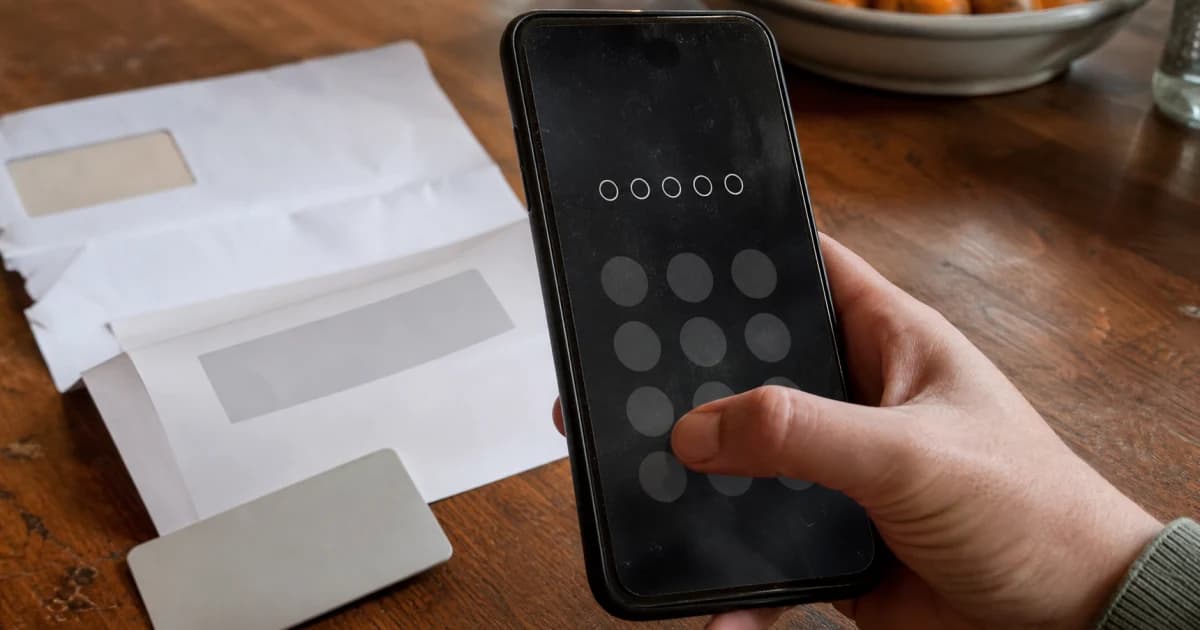
This guide is for newcomers getting DigiD or managing an existing account. If you live abroad, use the separate application route below.
Choose the route that matches your situation
Your registration decides which application route to use. Residents use the Basisregistratie Personen (BRP, Personal Records Database); people abroad use the Registratie Niet-Ingezetenen (RNI, Non-residents Records Database).
You can scroll wide tables sideways.
| Situation | Route | Requirements |
|---|---|---|
| Registered with a Dutch gemeente (municipality) | Online application and letter | BSN, BRP home address or briefadres (correspondence address), and a phone |
| Living abroad; using the standard form | Abroad application and code collection | BSN, valid passport or identity card, email and a phone receiving SMS from the Netherlands |
| Living abroad; eligible for the postal route | Apply through SVB (External site, opens in a new tab) (Sociale Verzekeringsbank, Social Insurance Bank); DigiD sends the activation letter | BSN, mobile phone and email. Post is delivered in your country. You receive AOW (Dutch state pension) or have an SVB letter confirming your first payment. |
| Have DigiD and move abroad | Keep your account | An active DigiD continues to work after the move |
| Child of any age | Apply for the child’s own DigiD | A parent or guardian may help under 14; from 14, children must apply for and use DigiD themselves |
Apply and activate your DigiD
For the Dutch-address route, complete these steps in order. Ask your gemeente to correct any BRP error before you apply.
- Check your registered name and address. The letter goes to your BRP address. A post office box or an empty address is not accepted.
- Open the official application in a browser.
- Complete the application with your chosen username and password.
- Store your username and password securely. You need both to activate DigiD.
- Wait for the activation letter. Allow up to 5 working days; its code starts with A.
- Enter the A-code on the DigiD website or in the app within 21 days. The app route activates both your account and the app.
- Add your email and phone number in Mijn DigiD, the account settings reached from the DigiD website (External site, opens in a new tab).
- Activate the app or SMS verification before you need to log in for an urgent task.
For example, you apply after moving into a new home, but the BRP still shows your previous address. The letter goes there. Ask your gemeente to correct the address before requesting another letter.
Know which account or app you need
DigiD proves your identity when you log in to an organisation’s service. MijnOverheid (External site, opens in a new tab) (My Government) and its Berichtenbox (External site, opens in a new tab) (government message box) are separate services. The table shows which tool handles each task.
You can scroll wide tables sideways.
| Name | Purpose | Limit |
|---|---|---|
| DigiD | Proves your identity for organisations offering DigiD login | Ask the organisation if its service can be handled online |
| Mijn DigiD | Manages contact details, login methods, devices and usage history | Open it from the DigiD website |
| DigiD app | Logs you in with a PIN (personal code), or optional fingerprint or face recognition | An ID-check (identity-document check) is a separate step |
| MijnOverheid | Shows selected government data and contains the Berichtenbox | Available from age 14; requires separate first-time activation |
| Berichtenbox | Receives digital letters from participating organisations | You cannot reply; some letters still arrive on paper |
To activate MijnOverheid, follow these steps:
- Log in with the DigiD app, SMS verification or an approved European login method.
- Add your email address.
- Choose which organisations may send digital mail.
Email alerts tell you when new mail arrives. Read the actual letter in the Berichtenbox and keep checking paper mail.
Choose a login method
The organisation decides which login methods it accepts. Check its login screen before choosing from the methods below.
You can scroll wide tables sideways.
| Method | How it works | Limit |
|---|---|---|
| Username and password | The details you chose when applying | Works only where the organisation accepts this method |
| SMS verification | Username, password and a six-digit text or spoken code | Supports mobile, foreign and landline numbers; enable spoken codes for a landline |
| DigiD app | PIN, or optional fingerprint or face recognition | Up to 5 active devices; computers use a PIN |
| App with ID-check | Reads an accepted Dutch identity document using NFC (contactless chip technology) | Required by some organisations for sensitive data |
You can activate the app without an ID-check if another activation method is available. The check accepts a Dutch passport, identity card or driving licence. A passport or identity card needs to contain your BSN. Foreign identity documents and Dutch residence documents are not accepted.
If your phone lacks NFC, someone else can help with Check-ID (External site, opens in a new tab) (identity-check app). You still need an accepted Dutch document. Some organisations require an annual ID-check for sensitive data. If you cannot add it, ask that organisation for another way to use its service.
The DigiD app also works on a supported computer or laptop. You can add the ID-check only through the app on a phone or tablet.
Log in with DigiD
Start on the website of the organisation whose service you need. An activated DigiD app or SMS verification is needed for the steps below.
- Open the organisation’s website in your browser.
- Choose “Log in with DigiD”.
- Select the app or username and password with SMS verification.
- Follow the prompts for your chosen method.
If the app is installed on the device you are using for the website, continue with these steps:
- Choose “On this device” if asked.
- When the app opens, enter your PIN or use the fingerprint or face recognition you enabled.
- Follow the remaining prompts.
If the app does not open, try the organisation’s website in another browser.
If the website is open on a different device from your app, continue with these steps:
- Open the DigiD app on your phone.
- Enter its PIN or use the fingerprint or face recognition you enabled.
- Request the verification code in the app.
- Enter that code on the organisation’s website.
- Choose “Next” on the website.
- Scan the QR code (scannable square) if shown.
- Follow the remaining prompts.
If you chose SMS verification, continue with these steps. With spoken codes enabled, DigiD reads your code during a phone call.
- Enter your username and password.
- Choose “Log in”.
- Enter the six-digit code sent to your phone.
- Choose “Next”.
Manage a new phone or recover access
Keep working login methods available while changing a phone or contact details. Use the matching row before removing your old device.
You can scroll wide tables sideways.
| Situation | First action | If that fails |
|---|---|---|
| New phone; old app works | Use the active app to activate the new one | The app may offer SMS, ID-check or a letter; abroad, use SMS or ID-check |
| Phone lost or stolen | Deactivate its app in Mijn DigiD; install it on your new phone | Contact the DigiD helpdesk if you cannot log in |
| App PIN forgotten | Reactivate the app and choose a new PIN | Use another active login method if offered |
| Phone number changed | Change it using the old number or an active app | Try activating the app with ID-check; abroad, reapply if you cannot change the number |
| 5 devices already active | Deactivate an old device in Mijn DigiD | Then activate the new device |
| Contact details changed | Update your email and phone in Mijn DigiD | Keep both current for password recovery |
After activation, DigiD lists three password-recovery methods: an active app, registered email plus SMS, or a recovery letter. Email-plus-SMS recovery needs access to both your registered email address and phone number. If you live abroad, NederlandWereldwijd (External site, opens in a new tab) (NetherlandsWorldwide) gives app or email-plus-SMS recovery steps. If neither that method nor an app you can still log in to works, apply again. Before activation, a forgotten password means applying again.
An active app lets you log in to Mijn DigiD and look up your username. Otherwise, request it with your BSN and password. Both your email address and phone number need to be registered, and you must be able to receive codes through both. You need an app you can still log in to when you have lost both login details. If you cannot use an active app, apply again. You can change a username only by applying for a new DigiD.
Apply from abroad with your BSN
The abroad route also covers Bonaire, Sint Eustatius and Saba. For the standard application-form route, you need all of these: RNI registration, a BSN, a valid passport or identity card, email and a phone receiving SMS from the Netherlands. A driving licence is not accepted for this route.
For the application-form route, follow these steps. Check appointment availability first: some desks have waits longer than the collection code’s 30-day validity.
- Book a video-call appointment or, if required, a desk appointment.
- Complete the DigiD abroad application (External site, opens in a new tab).
- Keep the nine-character B-code (collection code) sent by SMS and email. It is valid for 30 days.
- Collect your activation code at the appointment. For a video call, you need to be outside the European Netherlands; a desk visit can be abroad or in the Netherlands.
- Activate your DigiD within 21 days using the A-code you receive.
Check the NederlandWereldwijd code-collection options (External site, opens in a new tab) before booking. Most desks require an appointment. Take your original passport or identity card, BSN, B-code and the phone used for your application. For a video call, also have your username and password ready. During the call, the nine-character A-code arrives by SMS.
The SVB route needs your BSN, a mobile phone and an email address. If post is delivered in your country, you can apply through SVB when you receive AOW or have an SVB letter confirming your first payment. DigiD sends the activation letter to your home abroad. The code lasts 45 days. You do not need a desk visit or video call. If post is not delivered in your country, use the standard DigiD abroad application route above.
Applying for DigiD is free. Some embassies may charge for checking your passport; check your chosen desk’s instructions before booking.
Keep your username, password, app PIN and SMS code private. Use DigiD Machtigen (External site, opens in a new tab) (DigiD Authorisation) to give a person or company access to a specific task for a fixed period. You can see or cancel the authorisation.
Abroad, request or approve an authorisation online with DigiD or an approved European login. You can request an authorisation code online and give it to your helper with your BSN. Authorisation letters cannot be sent abroad or to the Caribbean Netherlands.
Respond to a lost phone or fake message
If someone may have your login details or your phone with the app is stolen, act now.
Phishing (fake messages that try to steal your details) can look like a DigiD message. DigiD’s fake-message guidance (External site, opens in a new tab) says its emails, texts and letters never contain links or QR codes. Use the checks below if a message or login looks unfamiliar.
You can scroll wide tables sideways.
| Signal | Meaning | Action |
|---|---|---|
| A message claiming to be from DigiD contains a link or QR code | Fake DigiD message | Leave the link unopened; forward the message or image to valse-email@digid.nl, then delete it |
| Someone asks for login details or your app PIN | DigiD staff never ask for them | End the contact and open the DigiD website yourself |
| Unfamiliar login or account change | Someone may have access | Change your password and check usage history in Mijn DigiD |
| Phone with an active app is lost or stolen | The app is still active | Deactivate it in Mijn DigiD; contact the helpdesk if you cannot log in |
Recover access after using a fake page
If you entered DigiD details on a fake page, follow these steps:
- Change your DigiD password now. If you cannot log in, contact the DigiD helpdesk.
- Check usage history in Mijn DigiD.
- Contact the helpdesk and any organisation shown in an unfamiliar login.
- Contact Fraudehelpdesk (External site, opens in a new tab) (fraud helpdesk).
If you entered bank details, contact your bank too. Report actual fraud to the police. For identity fraud, also report to Centraal Meldpunt Identiteitsfraude (External site, opens in a new tab) (CMI, Central Identity Fraud Reporting Centre).
Fix common DigiD problems
Use this table for a missing activation letter or a code that has expired or been rejected.
You can scroll wide tables sideways.
| Problem | Check | Action |
|---|---|---|
| No letter after 5 working days | BRP address and any recent move | Correct the address if needed; request one replacement letter |
| A-code expired | 21 days normally; 45 days after an SVB application | Apply again |
| A-code rejected | Exact characters and the latest letter | Check the code; after 3 incorrect attempts, apply again |
Use this table for registration, ID-check, forgotten login details or a portal that fails.
You can scroll wide tables sideways.
| Problem | Check | Action |
|---|---|---|
| No registered Dutch address | A briefadres may work; a post office box does not | Ask your gemeente about a briefadres, or use the abroad route if eligible |
| No NFC or accepted Dutch document | Whether the service requires an ID-check | Check-ID helps with missing NFC; without an accepted document, ask the organisation for another route |
| Username or password forgotten | Available recovery methods | Reapply if the password is lost before activation, or if both details are lost and you cannot log in with an active app |
| DigiD works; one portal fails | Try logging in to Mijn DigiD | If that works, contact the portal’s organisation; ask your gemeente to correct BRP errors |
For a DigiD problem that blocks Mijn Inburgering (My Civic Integration), see DigiD login problems in Mijn Inburgering.
Set up recovery before an urgent task
Keep your email and phone current. Activate the app or SMS verification. Save the DigiD helpdesk’s contact details. Activate MijnOverheid separately to receive digital government letters.
Continue with the guide that matches your next task:
- Health insurance in the Netherlands — arrange your health insurance.
- Open a Dutch bank account — arrange your bank account.
- Author
- By Inburgering.org team
- Reviewer
- Reviewed by Kirill Svavolia
Official Sources
- DigiD: Apply for DigiD (External site, opens in a new tab) - Requirements, registered-address rules and delivery time.
- DigiD: Activate DigiD (External site, opens in a new tab) - Activation methods, the 21-day deadline and replacement code.
- DigiD: What DigiD is (External site, opens in a new tab) - Scope of DigiD and organisations that use it.
- DigiD: DigiD app (External site, opens in a new tab) - App activation, devices, PIN, biometrics and ID check.
- DigiD: SMS verification (External site, opens in a new tab) - Text and spoken codes and two-step login.
- DigiD: Username and password (External site, opens in a new tab) - Credential recovery and when a new application is needed.
- DigiD: Privacy and Mijn DigiD (External site, opens in a new tab) - Account data, usage history and device management in Mijn DigiD.
- DigiD: Authorisation (External site, opens in a new tab) - Specific, time-limited authorisation and the abroad route.
- DigiD: Apply from abroad (External site, opens in a new tab) - RNI, identity-document, phone and email requirements.
- NetherlandsWorldwide: Collect the activation code (External site, opens in a new tab) - Video-call and desk collection options, including the restriction while physically in the Netherlands.
- MijnOverheid: About MijnOverheid (External site, opens in a new tab) - Separate activation, login requirements and government data.
- MijnOverheid: Berichtenbox (External site, opens in a new tab) - Receive-only mailbox, participating organisations and alerts.
- DigiD: Recognise fake messages (External site, opens in a new tab) - How official messages differ from phishing.
- DigiD: Fraud or misuse (External site, opens in a new tab) - Steps after stolen credentials, fraud or a stolen phone.
- DigiD: DigiD aanvragen (Apply for DigiD) (External site, opens in a new tab) - Dutch source for application requirements, registered addresses, 5 working days and children.
- DigiD: DigiD activeren (Activate DigiD) (External site, opens in a new tab) - Dutch source for the 21-day deadline, one replacement for a missing letter, three incorrect attempts and recovery exceptions.
- DigiD: DigiD app (Dutch) (External site, opens in a new tab) - Dutch source for app activation, five devices, biometrics, ID-check documents, annual checks and Check-ID.
- DigiD: Sms-controle (SMS verification) (External site, opens in a new tab) - Dutch source for six-digit text or spoken codes, supported phone numbers and changing a number.
- DigiD: Gebruikersnaam en wachtwoord (Username and password) (External site, opens in a new tab) - Dutch source for credential recovery and contacting the organisation when one portal fails.
- DigiD: Applying from abroad (Dutch) (External site, opens in a new tab) - Dutch source for the 30-day collection code, appointment timing, SVB eligibility and continued use after moving.
- DigiD: Machtigen (Authorisation) (External site, opens in a new tab) - Dutch source for specific tasks, fixed periods, revocation and the online-only authorisation route abroad.
- DigiD: Herken een vals bericht (Recognise a fake message) (External site, opens in a new tab) - Dutch source for links and QR codes in fake messages and the phishing-report email address.
- DigiD: Fraude of misbruik (Fraud or misuse) (External site, opens in a new tab) - Dutch source for acting now after suspected compromise, password changes, usage-history checks, stolen phones, bank contact and police plus CMI reporting.
- DigiD: Secure login tips (External site, opens in a new tab) - Keeping credentials and PIN private and checking the web address before login.
- WorkinNL: DigiD (External site, opens in a new tab) - DigiD applications are free; some embassy passport checks abroad may cost money.
- NetherlandsWorldwide: Video-call activation (External site, opens in a new tab) - Nine-character B-code, 30-day validity, appointment documents and the A-code sent by SMS during a video call.
- NetherlandsWorldwide: Activate DigiD from abroad (External site, opens in a new tab) - Normal activation codes last 21 days; codes after an SVB application last 45 days.
- NetherlandsWorldwide: Log in with the DigiD app (External site, opens in a new tab) - App-login steps on the same device or another device.
- NederlandWereldwijd: Change your phone number (External site, opens in a new tab) - Changing a number from abroad with an active app or old number; reapplying if this fails.
- Rijksoverheid (Dutch government): Centraal Meldpunt Identiteitsfraude (External site, opens in a new tab) - CMI reports, support and advice for victims of identity fraud.
- NederlandWereldwijd: Recover DigiD access abroad (External site, opens in a new tab) - App or email-plus-SMS recovery abroad, their contact-access conditions and reapplication when recovery fails.
- SVB: Apply for DigiD abroad with AOW (External site, opens in a new tab) - SVB application requirements, the postal-delivery exclusion, DigiD’s activation letter and the 45-day activation deadline.
- SVB: DigiD aanvragen buiten Nederland met AOW (External site, opens in a new tab) - Dutch source for BSN, mobile-phone and email requirements, AOW or first-payment-letter eligibility and exclusion where post is not delivered.
- SVB: DigiD aanvragen buiten Nederland zonder post (Apply for DigiD abroad without post) (External site, opens in a new tab) - The standard DigiD abroad application and video-call route when the SVB postal route is unavailable.
- DigiD: Contact the helpdesk (External site, opens in a new tab) - Official helpdesk contact routes and support for people abroad.
- Logius: Government digital services (External site, opens in a new tab) - Logius is part of the Dutch government and provides digital services including DigiD.
- Fraudehelpdesk: Fraud reports and advice (External site, opens in a new tab) - Reports of scams and suspicious activity, advice for victims and referrals to responsible authorities.